如何设置并激活eSIM?

设置eSIM是一项快速简便的操作,您可以直接在设备设置中完成整个流程。该流程分为两个阶段:安装和激活。安装过程中,您可以通过扫描二维码或手动输入相关信息,将数字eSIM配置文件添加到手机中;激活步骤则会开启移动数据,正式启用您的套餐。


对于旅行或国际eSIM,建议您在出行前安装eSIM,并在抵达目的地后再进行激活。这有助于确保您的设备能在合适的时机连接到当地网络。


在本指南中,您将学习如何设置 eSIM iPhone 以及Android设备、开始操作前需要检查的事项,以及如何稳妥有把握地完成整个流程。

安装前:您需要检查的事项

设置eSIM之前, 请花片刻时间检查几项关键事项,这将确保从启动到完成的整个设置流程全程顺畅。


  • 请连接到稳定的Wi-Fi网络安装eSIM,避免安装过程中断,不建议使用公共网络。
  • 请确保您的设备电量至少剩余20%,或在设置过程中保持设备连接充电器。
  • 请选择将eSIM添加到您的iOS或Android设备的方式:扫描二维码,或是输入手动安装代码。如果二维码无法在 iOS or 安卓 且必须按照提供的内容准确输入。

如何安装eSIM

此步骤需在您出行前完成,且需要稳定的Wi-Fi连接。在此过程中,eSIM配置文件将被添加到您的设备中,但此时还不会开始产生数据用量。 

To 在 iPhone 上安装 eSIM

  • 前往 设置 → 点击 蜂窝版 or 移动数据 → 点击 添加eSIM → 选择 使用二维码 → 点击 扫描二维码 (您可从此处扫描二维码,也可选择 手动输入详细信息) → 点击 下一步 → 继续进行激活。
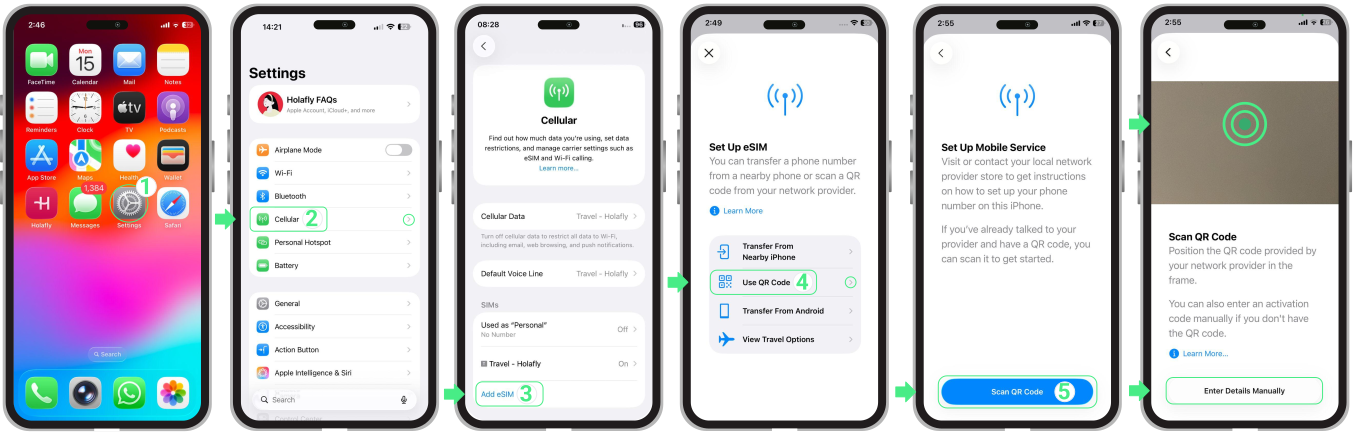
To install an eSIM on iPhone:
Go to Settings → Tap Cellular (Mobile Service) → Select Add eSIM → Choose Use QR Code → Scan the QR code or select Enter Details Manually → Tap Next → Tap Continue. Once the eSIM is installed, keep the line turned off or leave data roaming disabled until you arrive at your destination.

在Android设备上安装eSIM

  • 前往 设置 → 连接 → SIM卡管理器 → 添加eSIM → 点击 扫描二维码 (您可从此处扫描二维码,也可以选择 输入激活码) → 点击 添加 → 继续进行激活。
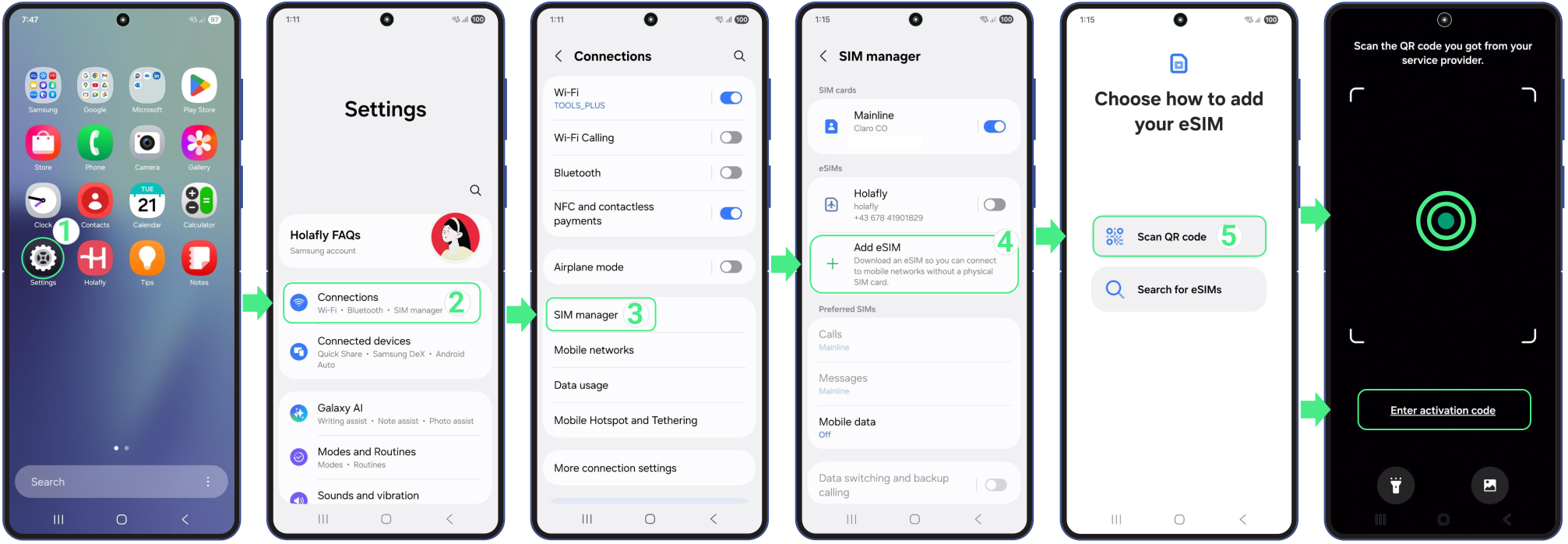
To install an eSIM on Android: 
Go to Settings → Tap Connections → Select SIM Manager → Tap Add eSIM → Choose Scan QR Code or Enter activation code → Paste the complete code (including LPA and colons) → Tap Add → Continue. After installation, make sure the eSIM is added correctly and avoid turning on data roaming until you reach your destination.

YouTube video

如何激活eSIM

激活是您的eSIM连接至当地移动网络的步骤。该过程会在您抵达目的地后开启eSIM线路、启用数据漫游时触发。

在iPhone上激活eSIM

  1. 前往 设置 → 蜂窝网络 or 移动服务 → 请通过切换关闭来停用您的个人SIM卡或其他eSIM卡 启用此行 → 返回至 蜂窝网络 or 移动服务 → 选择该 eSIM 您想要激活(您的新 旅行eSIM,它可能会以自定义名称的形式出现)。

To activate your travel eSIM on iPhone:
Go to Settings → Cellular or Mobile Service → Turn off your personal SIMs or other eSIMs by switching off Turn On This Line → Go back to Cellular or Mobile Service → Select the eSIM you want to activate (your new Travel eSIM, which may appear with a custom name).
Make sure the Turn On This Line button is enabled → Turn on Data Roaming → If prompted, tap Turn On Data Roaming to confirm → Return to Cellular or Mobile Service → Tap Cellular Data or Mobile Data and select the Travel eSIM as your data line → Check that Allow Mobile Data Switching is turned off to prevent the iPhone from switching between lines automatically.

  1. 请确保该 启用这一行 按钮已启用 → 开启 数据漫游 → 出现提示时,请点击 开启数据漫游 确认 → 返回至 蜂窝网络 or 移动服务 → 点击 蜂窝移动数据 or 移动数据 并选择该 旅行eSIM 作为您的数据行 → 请确认 允许移动数据切换 处于关闭状态,以防止 iPhone 在不同线路之间自动切换。

o activate your travel eSIM on iPhone:
Go to Settings → Cellular or Mobile Service → Turn off your personal SIMs or other eSIMs by switching off Turn On This Line → Go back to Cellular or Mobile Service → Select the eSIM you want to activate (your new Travel eSIM, which may appear with a custom name).
Make sure the Turn On This Line button is enabled → Turn on Data Roaming → If prompted, tap Turn On Data Roaming to confirm → Return to Cellular or Mobile Service → Tap Cellular Data or Mobile Data and select the Travel eSIM as your data line → Check that Allow Mobile Data Switching is turned off to prevent the iPhone from switching between lines automatically.

如果您使用双卡:


  • 仅在必要时使用您的个人线路进行通话和收发短信,请注意您的归属运营商可能会对相关使用收取费用。
  • 将eSIM设置为移动数据的默认线路,并关闭蜂窝数据切换功能,防止您的手机使用归属线路产生数据流量,从而避免产生漫游费用。

在 Android 设备上激活 eSIM

  • 前往 设置 → 点击 连接件 → 选择 SIM卡管理器 → 转动 关闭 其他处于激活状态的SIM卡 → 转动 开启 新安装的eSIM → 点击 移动数据 并选择 旅行eSIM → 返回至 连接件 → 点击 移动网络 → 转动 开启数据漫游 用于eSIM以 开始使用移动数据.
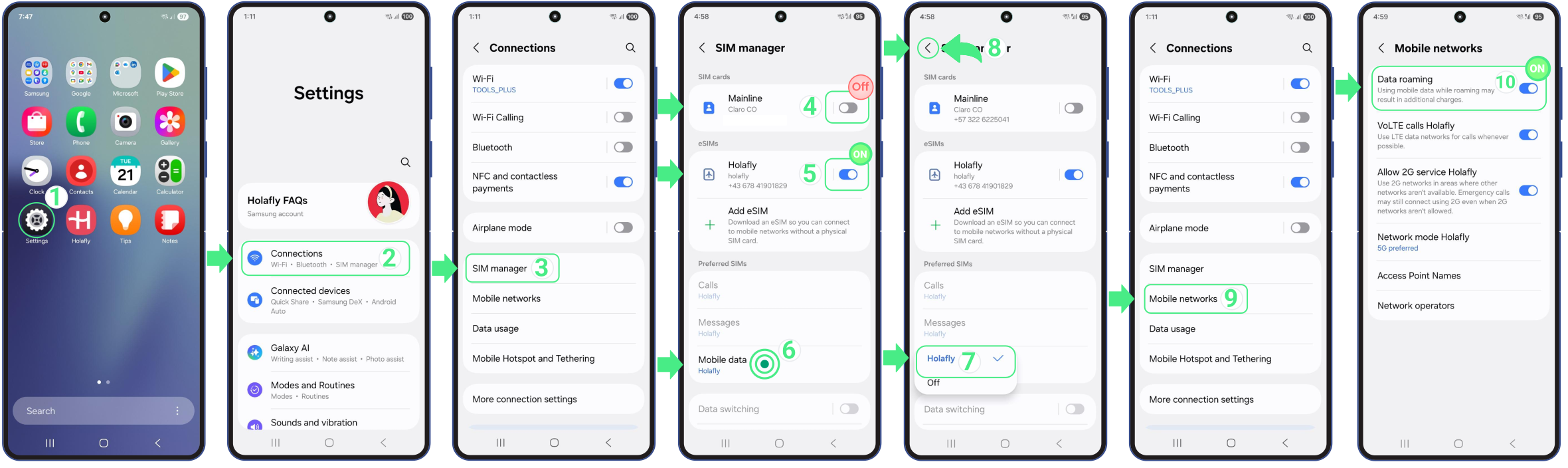
To activate a travel eSIM on Android:
Go to Settings → Tap Connections → Select SIM Manager → Turn OFF any other active SIMs → Turn ON the newly installed eSIM → Tap Mobile Data and select the Travel eSIM → Go back to Connections → Tap Mobile Networks → Turn ON Data Roaming for the eSIM to start using mobile data.

部分设备的菜单名称可能会略有差异。如果移动数据无法立即正常使用,请临时关闭其他已激活的SIM卡,并确认已将旅行eSIM选为移动数据使用的卡。

如果您需要更多 详细步骤 如需了解如何在Android上设置并激活eSIM,请查看我们的设备专属指南。您将找到对应的分步操作说明,适用于 三星, Google Pixel, 华为, 小米, 荣耀, Vivo, 摩托罗拉, 诺基亚, 索尼, OnePlus, 和 Oppo 设备。

故障排除提示

如果您已按照步骤完成eSIM的设置与激活,但数据网络仍无法正常使用,请查看以下要点。大多数情况下,只需要对相关设置进行简单调整即可解决问题。

  • 请确保您已抵达目的地。只有在目的地激活eSIM之后,数据服务才会正常生效。
  • 请确认新的eSIM已开启并被选为移动数据线路。
  • 请为旅行eSIM开启数据漫游。这是激活失败最常见的原因. 您必须在您的……中启用该设置 iPhone 蜂窝网络选项 or Android 网络设置 正确连接。
  • 如果您使用双卡,请暂时关闭其他已激活的SIM卡,避免其阻碍数据使用。
  • 请勿删除eSIM. 一旦移除后,将无法重新安装,通常需要配备新的eSIM。